If you are using a program other than Microsoft Word® , then you should save your document as a file type other than "Word," as explained below.
- First, click on File on the menu bar and then click on Save As
on the File Menu:
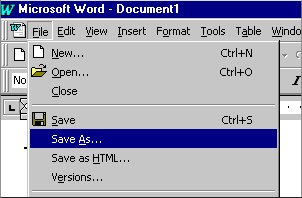
- After you click on "Save As," the Save As dialog box will appear, as shown
below. If you are saving your work on your own computer, go to the next
step. If you want to save your work on a floppy disk, click on the button
to the right of the "Save in" box and change to the floppy drive, as shown
below:

- Look at the bottom of the Save As dialog box and you will see two rectangles,
the first labeled "File name" and the second "Save as type." Click in the
File name box, press your backspace key to delete the words in the box,
and type the file name you wish to use. Then click on the button to the
right of the Save as type box and choose the file type that you will use
on your home computer. If you want to preserve your formatting (boldfacing,
italics, bulleted lists, double spacing, etc.), click on the "Rich Text
Format" option, as shown below.
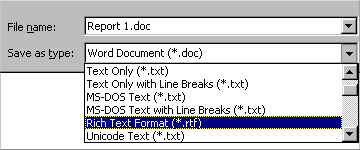
- Once the document file name has been changed to a "rich text format" document,
as shown below, click on the Save button on the right side of the dialog
box.

- If you are single spacing a document and not using boldfacing, bullets,
etc., you can save your document as "Text Only." To do so, click on the
"Text document" option, shown below:
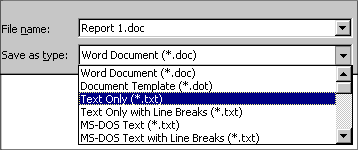
- Once the document file name has been changed to a text only document,
as shown below, click on the Save button on the right side of the dialog
box.
